Adjustable Laptop Stand w/ RGB & Fan for Cooler Comfort
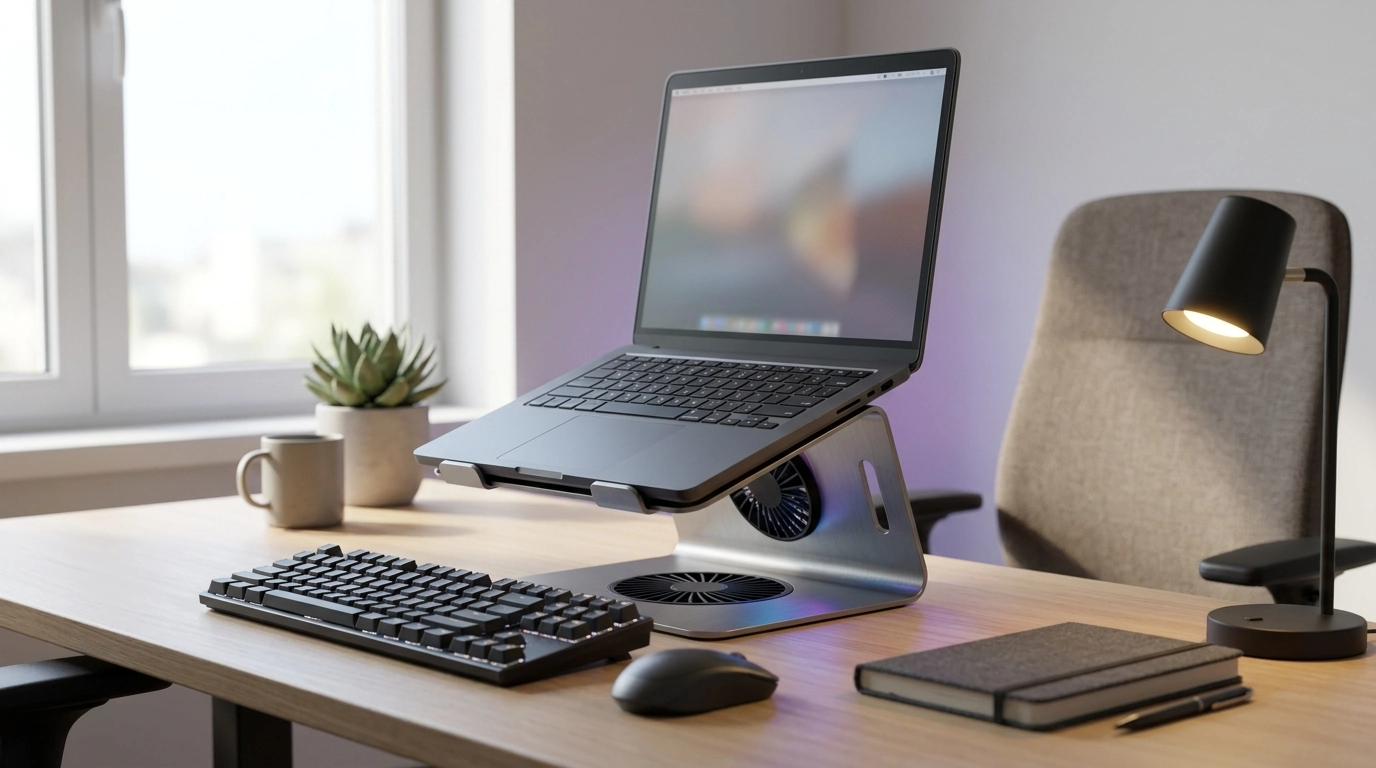
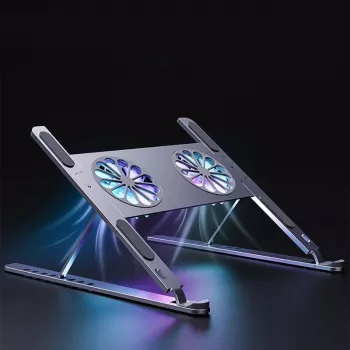
Adjustable Laptop Stand with RGB Light & Cooling Fan: Comfort, Airflow, and Desk Style
A laptop stand can do more than lift a screen. With adjustable angles, built-in fan cooling, and RGB lighting, this style of stand is designed to reduce heat buildup, improve typing posture, and make a compact workstation feel more intentional—whether it’s for classes, gaming, or long work sessions.
What This Stand Helps With
Using a laptop directly on a desk (or worse, on a couch cushion) often leads to two predictable issues: a low screen angle that encourages slouching, and restricted airflow that can push temperatures higher during demanding tasks. An adjustable stand with a cooling fan addresses both—plus adds a little desk personality if you want it.
- Raises the display to a more natural viewing height to reduce neck and shoulder strain during long sessions.
- Adds active airflow under the laptop to help manage heat during gaming, streaming, or multitasking.
- Creates a more stable typing surface than stacking books or using soft surfaces like a bed or couch.
- RGB lighting provides a subtle desk glow for mood lighting or a gaming setup aesthetic (not required for performance).
Adjustability and Desk Ergonomics
Height and angle control are the real “daily driver” benefits. When the screen sits higher, the head and neck don’t have to tilt down as much, and the shoulders tend to relax. Both OSHA’s computer workstation guidance and Mayo Clinic’s office ergonomics overview emphasize neutral posture and comfortable viewing angles as fundamentals for long-term comfort.
- Look for multiple height/angle positions so the top of the screen can sit closer to eye level, reducing downward neck tilt.
- A solid hinge or locking mechanism matters more than extreme height—stability prevents wobble while typing.
- A tilted platform can improve wrist alignment when paired with an external keyboard and mouse.
- For laptop-only typing, use a gentler tilt to avoid wrist extension and pressure at the palms.
One practical approach: raise the laptop for screen comfort, then bring input devices down to desk level. If you don’t have an external keyboard yet, keep the stand at a moderate height so typing still feels natural and your wrists aren’t bent upward for hours.
Cooling Fan Benefits and How to Get Real Airflow
A cooling fan is most effective when it supports what the laptop already wants to do: pull in cooler air through intake vents and push warm air out through exhaust vents. Even before you turn the fan on, a raised platform helps by creating a gap under the chassis so heat can dissipate instead of pooling against the desk surface.
- Cooling fans work best when the laptop’s intake vents are unobstructed; a raised stand helps even when the fan is off.
- For maximum effect, align the stand’s fan area with the laptop’s underside vent zones (common near the center or rear).
- Use on hard, flat surfaces; soft surfaces block vents and can trap heat.
- If performance drops under load, combine the stand with software fan curves or power settings to reduce sustained thermal throttling.
If you regularly run heavy workloads—gaming sessions, large spreadsheets, video calls plus screen sharing—cooling support can be the difference between consistent performance and a laptop that gradually slows down as it heats up.
RGB Lighting: Practical Setup Notes
RGB lighting is optional for productivity, but it can make a workspace feel finished—especially in darker rooms where a harsh overhead light is the only alternative. Consider it a comfort feature: subtle ambient glow around the desk can reduce the “bright screen in a dark room” effect.
- RGB can be used as ambient desk lighting to reduce harsh contrast in dark rooms, especially during late-night use.
- If lighting feels distracting, select a static color or turn it off during focused work.
- USB-powered lighting is typically plug-and-play; route the cable along the back edge of the desk to avoid snagging.
- Keep brightness moderate to prevent screen reflections and eye fatigue.
Compatibility: Laptops, Tablets, and Everyday Use Cases
Quick Specs Checklist (What to Confirm Before Buying)
At-a-Glance Checklist
| Feature | Why it matters | Quick tip |
|---|---|---|
| Height/angle adjustability | Improves posture and viewing comfort | Aim for the top of the screen near eye level |
| Cooling fan + vented platform | Helps manage heat under load | Use on a hard surface; keep vents unobstructed |
| Non-slip supports | Prevents sliding and wobble | Check for rubber pads on the base and ledge |
| RGB lighting controls | Lets you reduce distraction | Use a static color or turn off for focused work |
Care, Safety, and Troubleshooting
Product Options Available Now
- Adjustable Laptop Stand with RGB Light & Cooling Fan — a compact desk upgrade focused on comfort, airflow, and a clean setup look.
- Move Smarter, Not Harder | AI Fitness Tracking Checklist — a simple add-on for building better work-break routines when screen time adds up.
- Lighted Vanity Mirror with 10X Magnification and Adjustable Brightness — helpful for a multi-use desk or dorm setup where adjustable lighting matters.
FAQ
Will a cooling stand significantly lower laptop temperatures?
It can, but results depend on your laptop’s vent placement, workload, and ambient temperature. Cooling stands tend to help most when they prevent vents from being blocked and when the fan aligns closely with the laptop’s underside intake vents.
Is it better to type directly on a raised stand or use an external keyboard?
An external keyboard and mouse are usually more comfortable when the laptop is raised to a higher viewing position. If typing directly on the laptop, keep the stand at a moderate height and gentler tilt to avoid wrist strain.
Can the RGB lighting be turned off?
Most RGB stands include control modes that let you switch colors, choose a static setting, dim the brightness, or turn the lighting off. Use the stand’s button or controller to select the least distracting option for your space.




Leave a comment